
WordPress updates are critically important if you want your site to run securely, quickly and without problems. However, updates made at the wrong time or in the wrong way can cause serious problems on your site. Many site owners hesitate to update because bad experiences in the past have left them uneasy. In this guide, we will explain in detail when and how to run WordPress updates safely and which precautions you should take.
What Types of WordPress Updates Are There?
There are three different types of updates in the WordPress ecosystem, and each has its own characteristics.
WordPress Core Updates are updates to WordPress’s main software. They are usually divided into two categories: minor updates (such as 5.8.1, 5.8.2) and major updates (such as 5.8 to 5.9). Minor updates mostly contain security patches and critical bug fixes, while major updates bring new features, interface changes and major performance improvements. WordPress applies minor updates automatically, while major updates require your approval.
Theme Updates are improvements released by the developer of the theme you use. Premium theme updates are usually more frequent and more extensive. These updates are made to ensure compatibility with new WordPress versions, close security vulnerabilities, add new features or improve existing ones. You receive updates for free themes from the WordPress.org repository, and for premium themes from the theme developer’s own system.
Plugin Updates are improvements released by the developers of the plugins you use on your site. Plugin updates are usually the most frequent type of update. They are made to close security vulnerabilities, ensure compatibility with the new WordPress version, fix bugs and add new features. Updates for popular plugins in particular should be applied quickly because these plugins can be targeted by attackers.
When Should You Run WordPress Updates?
The timing of updates is critically important for your site’s security and stability. You need to follow a different strategy for each type of update.
Security updates should be applied as soon as possible after WordPress announces them. These updates usually close critical security vulnerabilities, and delaying them increases the risk of your site being hacked. WordPress applies security updates automatically, but it is still more reliable to check and apply them manually. Security vulnerabilities usually become widely known within a short time, and attackers start to exploit them.
For major updates, instead of rushing, it is wiser to be patient for 2-3 weeks. Big updates bring new features but can also cause unexpected compatibility problems. During this waiting period, the WordPress community discovers potential issues and shares solutions. Theme and plugin developers also make their own products compatible with the new version during this time. If your site is part of a critical business process, you can extend this waiting period even further.
The timing of updates also matters in terms of traffic levels. Review your site’s Google Analytics data to identify the hours when you get the fewest visitors. Late at night (between 02:00 and 06:00) or weekend mornings are usually ideal. If you run an ecommerce site, avoid peak shopping hours (Monday-Thursday evenings, weekends). Any interruptions during the update should affect as few users as possible.
Critical Preparation Steps Before a WordPress Update
The preparation process before an update is as important as the update itself. Preparing properly minimizes potential problems and lets you fix things quickly if something goes wrong.
Do not underestimate taking a full backup. A file backup alone is not enough; you must back up your database too. Plugins such as UpdraftPlus and BackWPup can back up both files and the database. It is safer to store backups in different locations (Google Drive, Dropbox, an external server). Once the backup is complete, always run a check to make sure the backups were created properly.
Setting up a test environment is a sign of a professional approach. If your hosting company offers a staging (pre-production) environment, use it; if not, you can set up a test environment on your local computer with XAMPP or Local by Flywheel. Running the update in the test environment and observing the results eliminates the risk of unpleasant surprises on the live site. If you run into problems in the test environment, you can try out solutions there and be sure before applying them to the live site.
Checking plugin and theme compatibility is very important. Custom-developed themes and old plugins in particular may not be compatible with new WordPress versions. Each plugin’s WordPress.org page has a “Tested up to” field. If this information is out of date or shows an old WordPress version, be careful. Check how up to date a plugin is by visiting the plugin developer’s website. Consider deactivating plugins that have not been updated for a long time before updating.
Step-by-Step WordPress Update Process
You can update WordPress in two different ways: automatic update and manual update. Both methods have advantages and disadvantages.
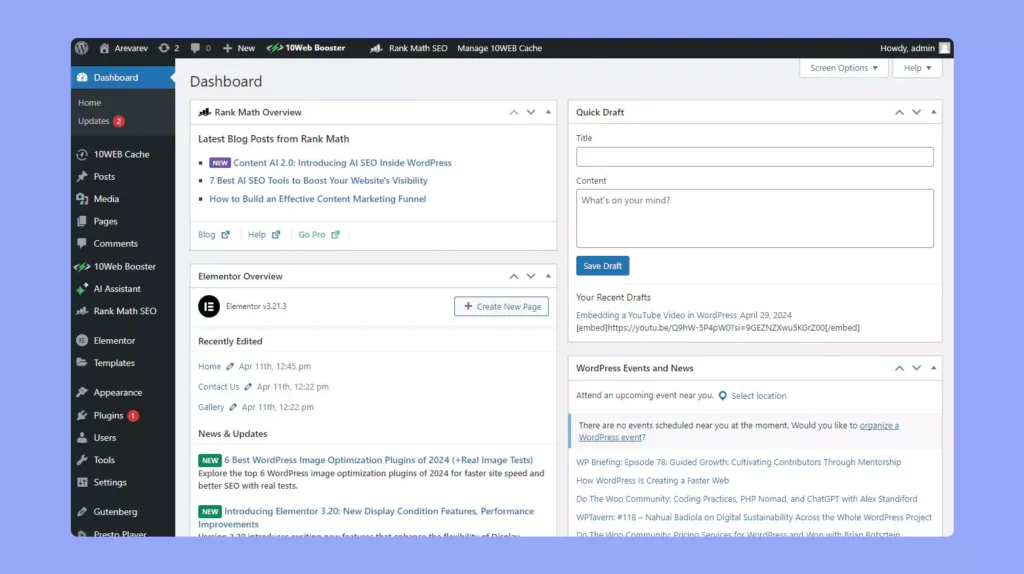
The automatic update method is simpler and faster. After logging in to your WordPress admin panel, if you see an update notification in the Dashboard section, go to the “Updates” page. Here you will see WordPress core, theme and plugin updates. Before updating, note which version you are moving from and to. After clicking the “Update Now” button, do not close the page or do anything else until the process is complete. Because the update process depends on the internet, you may run into problems if your connection drops.
The manual update method requires more technical knowledge but gives you more control. First, download the latest version from WordPress.org and unzip the file on your computer. Connect to your server with an FTP program (such as FileZilla). Copy the wp-config.php file and the wp-content folder to a safe place. Then delete all files and folders in the root directory (except wp-config.php and wp-content). Upload the new WordPress files you downloaded to the server. When you log in to the site admin, if the database update screen appears, click the “Update Now” button.
Detailed Post-Update Checklist
After the update is complete, it is critically important to check every aspect of your site. These checks let you detect potential problems early.
In site functionality testing, the home page alone is not enough. Visit all your important pages (about us, contact, product pages, etc.). Check that the menus work correctly and the links are not broken. If you have an ecommerce site, test critical functions such as the shopping cart, checkout page and user login. You should also be sure to test interactive features such as form submission, search and the comment system.
During the plugin and theme check, it is not enough to look only at whether they are active. Visit each plugin’s settings page in the admin panel and make sure it works properly. Check whether your custom CSS code has been preserved. Look into whether any changes in your theme customizations (Customizer settings, widget areas, etc.) have been lost. If you use a child theme in particular, verify that your custom styles and functions work properly.
The performance and SEO check should not be skipped either. Test your page speed with GTmetrix or Google PageSpeed Insights. Unexpected slowdowns can occur after an update. Use Google Search Console to check that your sitemap is being indexed properly. Verify that your SEO plugin’s (Yoast, RankMath, etc.) settings have been preserved and that your meta information has not changed.
Common Update Problems and Practical Solutions
The problems you may encounter during a WordPress update are usually predictable and solvable.
The white screen problem is the most common update problem. It is usually caused by a plugin conflict. To fix it, go into the wp-content/plugins folder via FTP and temporarily rename all the plugin folders (for example “plugins-disabled”). If the site returns to normal, activate the plugins one by one to find out which one is causing the problem. Once you find the problematic plugin, download its latest version and update it manually, or look for an alternative plugin.
A database connection error can be caused by the settings in the wp-config.php file. Use the wp-config.php file from the backup you took before the update and compare it with the current file. Check whether there are any changes in the database name, username, password or server details. Ask your hosting company to confirm your database server details.
If your theme breaks, first remember whether you were using a child theme. If you made changes to the parent theme, those changes may have been lost with the update. That is why it is always important to use a child theme. You can restore your theme files from the backup or get help from the theme developer’s support.
Managing WordPress Automatic Updates
The WordPress automatic update system helps protect your site’s security automatically, but it is important to keep it under your control.
By default, WordPress applies minor updates (security patches) automatically. This behavior can be controlled in the wp-config.php file. If you want to disable automatic updates completely, you can add the code define( 'AUTOMATIC_UPDATER_DISABLED', true );. However, this can be risky from a security standpoint.
For a more balanced approach, you may want to automate only core updates: define( 'WP_AUTO_UPDATE_CORE', true ); This code applies both minor and major updates automatically. For minor updates only, you can use define( 'WP_AUTO_UPDATE_CORE', 'minor' );.
Conclusion and Recommendations
WordPress updates are indispensable for your site’s security, performance and functionality. Updates made with the right strategy and preparation guarantee your site keeps running smoothly. Always take a backup before every update, try it in a test environment and run detailed checks after the update.
Remember that updates are not a one-time task; they require ongoing maintenance. By building a regular update routine, you can make sure your site always stays up to date and secure. If you do not feel confident with technical matters, consider getting professional WordPress support.