
Last year, a client’s website became completely inaccessible because of a technical problem on the hosting side. Because the site had no up-to-date backup, weeks of work and content worth thousands of Turkish liras vanished in an instant. That unfortunate experience reminded me once again how vital a WordPress backup system is. Whether you run a small blog or a busy e-commerce site, without a regular and reliable backup strategy your digital assets are at risk at any moment.
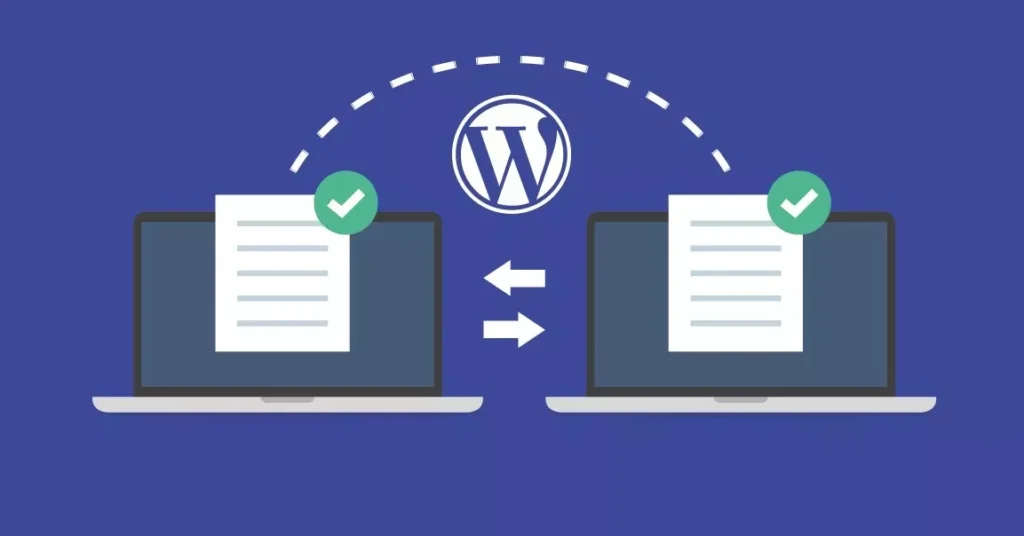
About 43% of WordPress sites are never backed up regularly. This statistic shows how common a potential disaster scenario is. Regular backups matter not only for technical failures but are also a lifesaver in situations such as cyberattacks, human error or plugin incompatibilities. In this article, I will share with you the best backup practices and strategies you can use to protect your WordPress site.
Why Is a WordPress Backup So Critical?
One of the biggest problems WordPress sites face is the risk of critical content and settings suddenly disappearing. All of us who work with technology know that something can go wrong. That is exactly why backups are a fundamental part of digital risk management.
A study carried out in 2022 shows that 60% of businesses that suffer data loss shut down within six months of the incident. If your website is the heart of your business, your backup systems are like a pacemaker that regulates your heartbeat. So what should you pay attention to when backing up your sites?
What a WordPress Backup Should Cover
An effective WordPress backup strategy should include all the critical components of your site. These are:
- Database: All your content, user information, comments and site settings are stored here.
- WordPress core files: The basic files that make WordPress run.
- Themes and plugins: The components that provide your site’s appearance and functionality.
- Media files: All the images, videos and other media content you have uploaded.
- wp-config.php: The critical file that contains your database connection details.
An important lesson I have learned from my professional experience is that partial backups often cause problems during site restoration. For example, backing up only the database and neglecting the theme files can make your site look completely different after you restore it.
WordPress Backup Frequency: How Often Is Enough?
Backup frequency varies depending on how active your site is and how often its content changes. Based on the experience I have gained managing hundreds of WordPress sites over the years, I can summarize the ideal backup frequency as follows:
Backup Frequency by Site Type
Every WordPress site has different needs. Here are the recommended backup frequencies by site type:
- E-commerce sites: Daily full backup + a database backup after every transaction
- Corporate websites: Full backup 2-3 times a week
- Blog sites: A full backup whenever you add content, or once a week
- Static information sites: Whenever the content is updated, or once a month
Last year, an e-commerce client who was not doing daily backups lost the records of 45 orders placed in a single day. After that, we started running automatic hourly database backups, and we have not had a problem like that since.
WordPress Backup Methods and Tools
There are several different ways to back up WordPress sites. Each method has its own advantages and disadvantages. Here are the most effective WordPress backup methods:
Backing Up with a Plugin
Plugins are the most common and user-friendly way to automate the WordPress backup process. Here are some backup plugins I have tested for years and confidently recommend:
- UpdraftPlus: The most popular backup plugin, with over 3 million active users. It integrates with cloud storage services such as Dropbox, Google Drive and Amazon S3.
- BackupBuddy: Stands out with its automatic backup and easy restore features. Its Stash Live feature offers real-time backup.
- JetBackup: A powerful tool optimized for large sites that can make incremental backups.
- WP Time Capsule: Saves storage space by backing up only the files that have changed.
While managing more than 50 WordPress sites last year, I saved time and resources thanks to the automatic backups and cloud storage integrations that UpdraftPlus offers. For our clients in different time zones in particular, being able to schedule backups automatically during low-traffic hours is a big advantage.
Backing Up Through Your Hosting
Many good hosting companies offer their own backup solutions. These can usually be accessed through cPanel or the hosting control panel.
Points to watch when backing up through your hosting:
- Check how long backups are kept (this usually varies between 7 and 30 days)
- Assess whether the automatic backup frequency suits your needs
- Find out how to access backups and the restore procedure
- Ask whether the hosting company’s backup policy includes a guarantee
From my personal experience, I can say that relying entirely on hosting backups can be risky. When a client’s site was hit by a cyberattack and we found that the hosting company’s latest backup was also infected and unusable, we understood the importance of an independent backup once again.
Manual Backup Methods
For users with technical knowledge, manual backup methods can also be effective:
- File backup via FTP: Using an FTP client such as FileZilla, you can download all your site files to your computer.
- Database backup with phpMyAdmin: By accessing phpMyAdmin from your hosting control panel, you can export your database in SQL format.
- WP-CLI commands: You can perform advanced backup operations through the command line.
Recently, I made a manual backup on a client’s site before a major update. When we ran into unexpected problems during the update, that manual backup let us restore the site to its previous state within minutes.
Keeping Your Backups Safe: The 3-2-1 Backup Strategy
Backup experts recommend the 3-2-1 strategy for data security. Applying this approach to your WordPress sites protects you against almost any disaster scenario.
What Is the 3-2-1 Backup Strategy?
The 3-2-1 backup strategy means the following:
- 3 copies: Create at least three copies of your data (the original + two backups)
- 2 different formats: Store your backups on at least two different types of storage (e.g. an external drive + cloud storage)
- 1 offsite location: Keep at least one of your backups in a physically different location
Applied to your WordPress site, an ideal scenario could look like this:
- Automatic backups provided by your hosting company (1st copy)
- Backups sent to Google Drive with a plugin such as UpdraftPlus (2nd copy, different format and offsite location)
- Backups you take manually each month and store on an external drive (3rd copy and second different format)
Last year, when a client’s hosting company went bankrupt and suddenly stopped providing service, the backups we had stored on Google Drive let us get through the move to a new host without trouble. This experience showed me once again the importance of keeping your backups in different locations.
Testing Your Backups: The Critical Step That Gets Overlooked
The most common mistake WordPress administrators make is not testing their backups regularly. When you set up a backup solution you may think your job is done, but the truth is: a backup that hasn’t been tested isn’t a backup.
Once, we thought we had been taking automatic backups of a large e-commerce site for months. But when we needed to do a restore, we found that the backup files were corrupted and unusable. Since then, we have been testing all our clients’ backups every three months.
Steps for Testing Your Backups
- Run restore tests regularly in your staging (test) environment
- Test your backups on a different domain/subdomain
- Check database backups in a local WordPress installation
- Run a full disaster recovery simulation at least twice a year
Don’t forget to document your backup tests and take notes to improve your process after each test. This saves time in a real emergency.
Conclusion: Build Your Proactive Backup Strategy
A WordPress backup is one of the most important parts of your site security strategy. Backups are not just a technical requirement but also an insurance policy for your business’s continuity. No WordPress site owner should ever have to say “I wish I had taken regular backups”.
By following the best practices I have shared in this article, you can protect your WordPress site against the risk of data loss:
- Take comprehensive backups that include all components of your site
- Set your backup frequency according to your site type and activity level
- Use reliable plugins or hosting solutions
- Apply the 3-2-1 backup strategy and store your backups in different locations
- Test your backups regularly and document your restore processes
Now is the time to act! Review your current backup strategy and make the necessary improvements. If you don’t have a regular backup plan yet, start today. The security and future of your WordPress site may depend on it.
Have you reviewed your site’s backup strategy? Which methods do you use? Feel free to share your experiences or questions in the comments section. We can learn from one another how to protect our digital assets!