
How to Create a Shortcode in WordPress: A Detailed Guide with Practical Examples
When working with WordPress, have you grown tired of repeating the same content on different pages over and over? Having to recode complex elements such as contact forms, pricing tables or custom buttons every single time really is a waste of time. This is exactly where shortcodes come in and completely change your WordPress experience.
Last year, on a WordPress site we developed for a corporate client, there was a complex section showing customer testimonials. Instead of coding this section separately for every page, we created a shortcode, and by simply typing [musteri-referanslari] the client could use this section anywhere they wanted. This approach both saved time and made managing the site incredibly easy.
Although shortcodes are one of WordPress’s most powerful features, many site owners cannot make full use of this potential. In this post, we will go through all the finer points of creating shortcodes, together with practical examples.
What Is a Shortcode and Why Is It So Important?
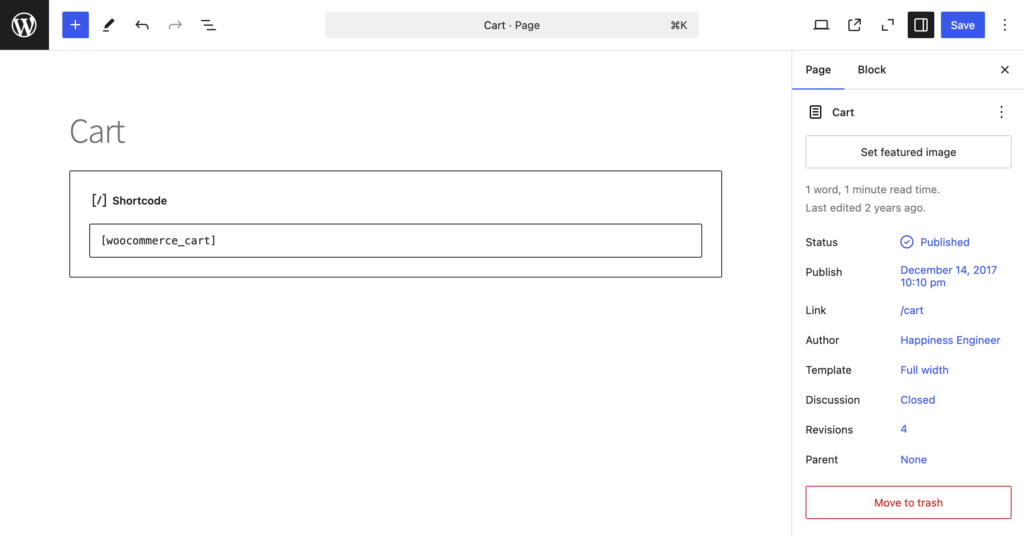
Shortcodes are systems that let you call complex functionality in WordPress with simple snippets of code. Written inside square brackets, these short codes run much more complex PHP functions in the background.
Imagine you want to offer your customers a custom calculator. Normally you would have to code this calculator separately into every page. With a shortcode, however, you can create it once and use it on any page you like by typing [hesap-makinesi].
The biggest advantage of shortcodes is their flexibility. By using parameters, you can make the same shortcode work in different ways. For example, by using it in the form [dugme renk=”kirmizi” boyut=”buyuk”], you can call the same button shortcode with different properties.
Creating Your First Shortcode: Basic Structure and Functions
The most basic way to create a shortcode is to use WordPress’s add_shortcode() function. This function can be added to your theme’s functions.php file or to a custom plugin.
Let’s start with the simplest shortcode example. Say you want to display the current year on your site at all times:
Basic Shortcode Structure:
function guncel_yil_shortcode() {
return date('Y');
}
add_shortcode('yil', 'guncel_yil_shortcode');
This piece of code will automatically display the current year every time you use the [yil] shortcode. It is especially useful in copyright notices in the footer.
The most important thing to watch out for in shortcode functions is to use return instead of echo. Because WordPress shortcodes take the value returned from the function and put it in place, outputting directly can lead to unwanted results.
Shortcodes with Parameters: Flexibility and Customization Options
The real power emerges when you create shortcodes with parameters. Thanks to this approach, you can run many different scenarios with a single shortcode.
For example, I developed a shortcode that can create buttons in different colors and sizes:
Shortcode with Parameters Example:
function ozel_dugme_shortcode($atts) {
$varsayilan_degerler = array(
'renk' => 'mavi',
'boyut' => 'orta',
'link' => '#',
'metin' => 'Tıkla'
);

$degerler = shortcode_atts($varsayilan_degerler, $atts);

$html = '<a href="http://'%20.%20$degerler['link']%20.%20'" class="dugme ' . $degerler['renk'] . ' ' . $degerler['boyut'] . '">';
$html .= $degerler['metin'];
$html .= '</a>';

return $html;
}
add_shortcode('dugme', 'ozel_dugme_shortcode');
You can use this shortcode in the following ways:
- [dugme] – With the default settings
- [dugme renk=”kirmizi” boyut=”buyuk”] – In red and large size
- [dugme link=”https://example.com” metin=”Hemen Başla”] – With a custom link and text
The shortcode_atts() function plays a critical role here. By merging the parameters given by the user with the default values, it provides safe values for any missing parameters.
Advanced Shortcode Techniques and Real Project Examples
Shortcodes are not limited to returning simple HTML. You can build complex structures that run database queries, generate dynamic content and even contain other shortcodes.
On a real estate site, my latest project, I developed a shortcode that lists featured properties. This shortcode pulled data from custom post types to build a dynamic list:
Dynamic Content Shortcode Example:
function ozel_gayrimenkul_listesi($atts) {
$parametreler = shortcode_atts(array(
'sayi' => 3,
'kategori' => '',
'sirala' => 'tarih'
), $atts);

$args = array(
'post_type' => 'gayrimenkul',
'posts_per_page' => $parametreler['sayi'],
'orderby' => $parametreler['sirala']
);

if (!empty($parametreler['kategori'])) {
$args['meta_query'] = array(
array(
'key' => 'kategori',
'value' => $parametreler['kategori']
)
);
}

$query = new WP_Query($args);
$output = '<div class="gayrimenkul-listesi">';

if ($query->have_posts()) {
while ($query->have_posts()) {
$query->the_post();
$fiyat = get_post_meta(get_the_ID(), 'fiyat', true);

$output .= '<div class="gayrimenkul-item">';
$output .= '<h3>' . get_the_title() . '</h3>';
$output .= '<p>Fiyat: ' . $fiyat . ' TL</p>';
$output .= '</div>';
}
}

wp_reset_postdata();
$output .= '</div>';

return $output;
}
add_shortcode('gayrimenkul_listesi', 'ozel_gayrimenkul_listesi');
Used in the form [gayrimenkul_listesi sayi=”5″ kategori=”satilik”], this example shortcode can list the first 5 properties for sale.
Security is also a critical topic with shortcodes. Especially for parameters that accept user input, you must use WordPress security functions such as sanitize_text_field() and esc_html().
Shortcode Management and Performance Optimization
Although shortcodes are powerful, they can hurt site performance if used incorrectly. Using caching mechanisms is critically important, especially for shortcodes that contain database queries.
You can cache shortcode results by using WordPress’s Transients API:
function cached_shortcode_ornegi($atts) {
$cache_key = 'shortcode_cache_' . md5(serialize($atts));
$cached_result = get_transient($cache_key);

if ($cached_result !== false) {
return $cached_result;
}

// Heavy operations are performed here
$result = // karmaşık hesaplama veya sorgu

set_transient($cache_key, $result, HOUR_IN_SECONDS);
return $result;
}
To keep your shortcodes organized, I recommend collecting them in a separate plugin file. This approach prevents shortcodes from disappearing when you change themes and makes code management easier.
Also make sure you provide your shortcodes together with documentation. Especially in team projects, it is very valuable to have clear information on what each shortcode does, which parameters it takes and how it is used.
Conclusion and Your Action Plan
Shortcodes are the most effective way to automate repetitive tasks on your WordPress site and to simplify complex functionality. They have a wide range of uses, from a simple text change to complex database queries.
To get started with shortcodes today, follow these steps: First, identify the content that you keep repeating on your site. These could be contact forms, buttons, custom lists or calculators. Then create your first shortcode, starting with the simplest one.
Remember that while shortcodes increase your site’s flexibility, they also make management easier. Used correctly, they will significantly improve the WordPress experience of both you and your customers. After creating your first shortcode, you can move on to more complex examples and fully discover the potential of your WordPress site.