
From the experience I have gained building hundreds of WordPress sites over the years, I can say that what really matters here is directly tied to how efficiently you can use the settings inside the WordPress admin panel. Many site owners think the WordPress admin panel is only about adding and editing content. Yet when used correctly, this powerful platform can significantly improve your site’s performance, security and user experience.
According to current data, 43% of websites use the WordPress infrastructure. Despite such widespread use, most users take advantage of only a superficial part of what the admin panel offers. In this post, I will share tips that will let you use the WordPress admin panel like a professional, save you time and make managing your site easier.
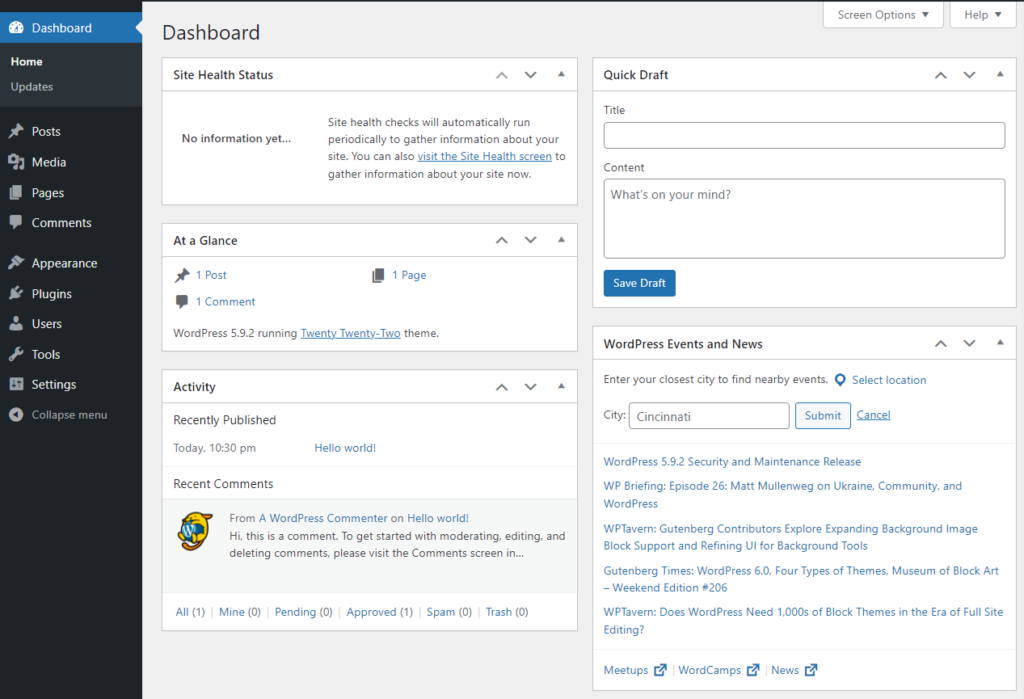
WordPress Admin Panel Customization Tips
Arranging the WordPress admin panel to suit your own working style can speed up your daily tasks considerably. In my work with clients, I have observed that these customizations save an average of 3-4 hours a week, especially on sites with heavy content management.
Simplifying the Dashboard
The Dashboard you see when you first log in is often full of unnecessary widgets. To clean up this area and see only the components you need, you can use the “Screen Options” section. Click the “Screen Options” tab in the top right corner and select only the widgets you use regularly.
For example, if you manage an e-commerce site, it makes sense to keep widgets such as “WooCommerce Status” and “Recent Orders”, while for a blog-focused site it makes sense to keep “Recent Comments” and “Quick Draft” active.
Using the Admin Bar Efficiently
The black admin bar at the top of your site is actually a superb time saver. Most users do not take enough advantage of its power. From the admin bar you can quickly create new content, manage pending comments and check plugin updates.
To make this bar even more powerful, you can use plugins such as “Admin Menu Editor” or “Admin Toolbar Menus”. That way, you can reach the pages you use most often with a single click. For example, if you frequently check your SEO settings, you can add direct access to the Yoast SEO settings.
Time-Saving Features in Content Management
Content production is the most time-consuming part of a WordPress site. But with a few basic tips, you can speed up this process considerably. Especially if you manage a site that publishes content on a regular weekly basis, these tips can save you 8-10 hours a month.
Quick Edit and Bulk Action Features
When you hover the mouse pointer over an item in the Posts or Pages section, the “Quick Edit” option appears. With this feature, you can edit basic fields such as title, excerpt, categories and tags without opening the full-page editor. This feature saves an incredible amount of time, especially when you are optimizing content.
You can also use the bulk action feature to manage your posts or pages in batches. You can select multiple items and change their categories, update their status or delete them all at once. This feature is very handy, especially when you are reorganizing your site structure.
Content Editing Shortcuts
There are many keyboard shortcuts you can use in the WordPress editor. Using them effectively can speed up your content creation process. Here are some of the most useful ones:
- Ctrl+S – Save draft
- Ctrl+B – Bold text
- Ctrl+I – Italic text
- Ctrl+K – Insert link
- Alt+Shift+M – Insert image
If you use the classic editor, you can see all the shortcuts by clicking the “Help” button in the top right corner. In the Gutenberg editor, you can access the list of shortcuts with the Ctrl+Alt+H combination.
Automating WordPress Security and Backup Tasks
Security is one of the most critical issues for a WordPress site. From my experience, even simple security measures can protect your site by 90%. On the other hand, not having a regular backup system will make you regret it one day, without fail.
Creating a Security Control Panel
Creating a security control area for yourself in the WordPress admin panel helps you keep track of your site’s security on a regular basis. For this, you can use one of the popular security plugins such as “Wordfence”, “Sucuri” or “iThemes Security”.
These plugins add a security widget to the dashboard and display basic security metrics. You can also receive notifications about login attempts, malware scans and vulnerabilities. Checking this panel once a week lets you spot potential threats early.
Creating an Automatic Backup Schedule
Setting up an automatic backup system in the admin panel is one of the tasks WordPress users neglect most, yet it is one of the most critical. Plugins such as “UpdraftPlus” or “BackupBuddy” can back up your site automatically and send these backups to cloud storage services such as Google Drive, Dropbox or Amazon S3.
Set your backup schedule according to how often your site content is updated. Daily backups are ideal for e-commerce sites, while weekly backups may be enough for sites that are updated less often. Also, don’t forget to configure it to keep at least 3 different backup versions.
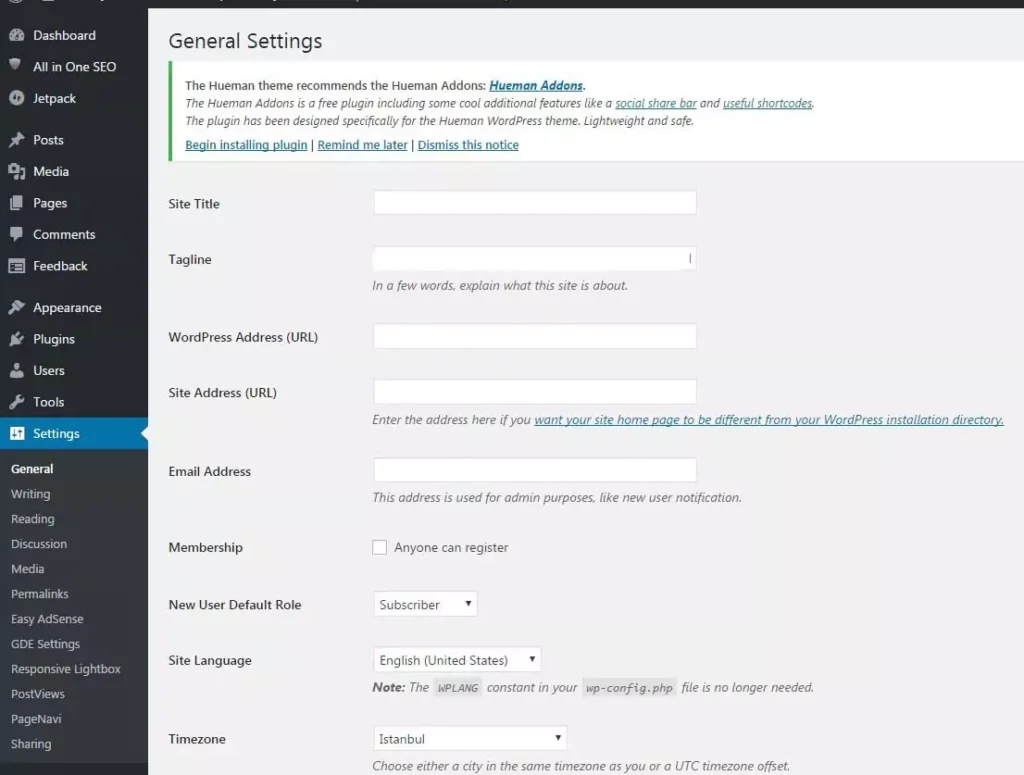
WordPress Admin Panel Performance Optimization and Monitoring Tools
Site performance is critical for both user experience and SEO. Configuring performance monitoring and optimization tools correctly in the admin panel can significantly increase your site’s speed.
Creating a Performance Dashboard
Caching plugins such as “WP Rocket”, “W3 Total Cache” or “LiteSpeed Cache” add a dashboard widget with which you can monitor your site’s performance. With these widgets, you can track page load times, cache status and other performance metrics.
There are also plugins that display Google PageSpeed Insights or GTmetrix results directly in your WordPress dashboard. By integrating these tools, you can monitor your site’s performance regularly and quickly spot potential problems.
For example, the “Site Health” feature is a built-in tool that arrived with WordPress 5.2. Accessible from the “Tools > Site Health” section, this feature analyzes your site’s performance and security status and offers suggestions for improvement.
WordPress Admin Panel Database Optimization and Media Management
The WordPress database and media library become bloated over time, and this can reduce your site’s performance. Plugins such as “WP-Optimize” or “Advanced Database Cleaner” help you optimize your database and clean out unnecessary data.
For the media library, you can use plugins such as “Media Cleaner” or “Imsanity”. These plugins let you detect and delete unused media files or automatically resize large images.
Optimizing the database once a month can deliver performance gains of up to 15-20%, especially on sites that produce a lot of content. Creating a reminder for this should be an important part of your routine maintenance plan.
Conclusion and Action Plan
Using the WordPress admin panel effectively can make site management far more efficient. Applying the tips I have shared in this post will both save you time and improve your site’s performance and security.
Three simple steps you can take right now:
- Customize your Dashboard and remove unnecessary widgets
- Set up an automatic backup system and test it
- Check your Site Health report and apply the recommended improvements
Optimizing the WordPress admin panel this way may take a little time at first, but in the long run it will save you much more time. In addition, with more professional site management, it will also have a positive effect on user experience and SEO performance.
You may have your own special tips or personal settings for the WordPress admin panel, but if you are still having problems with WordPress in general, you can get in touch with me for professional support.