
I still remember the first day I set up my website with WordPress. What started as a small blog gradually grew into a corporate website run by a growing team. One of the biggest challenges I faced along the way was controlling what each team member could do on the site. The more people work on your site, the more important the question “who can edit what?” becomes. That is exactly where WordPress user roles and the permission system come in.
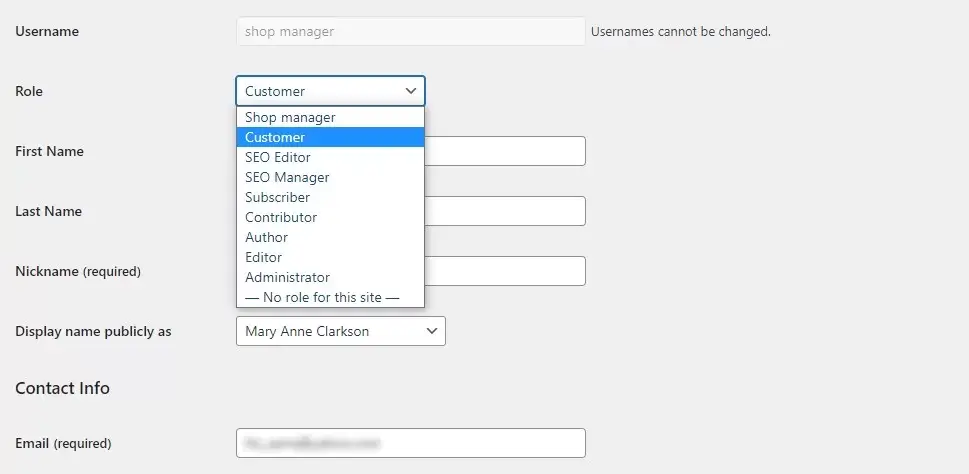
Many business owners and site administrators work without making full use of WordPress’s powerful user role system. Yet a properly configured permission setup both improves your site’s security and speeds up your workflow considerably. Today I will share the details of WordPress user roles, what each role is allowed to do, and how to distribute roles in the way that suits your business best.
What Are the Default User Roles in WordPress?
WordPress comes with five different user roles out of the box. Each role defines specific permissions and restrictions for users on the site. These roles are arranged in a hierarchy – higher-level roles have all the capabilities of the lower-level roles and can do more on top of that.
Administrator
The Administrator is the user with full control over your WordPress site. They can do everything, from installing themes and plugins to managing users, creating content and changing settings. To use an analogy, the Administrator role is like the “general manager” of your site – with access to every department and the final say on everything.
One critical point for site security: Administrator accounts should be kept to a minimum. In my experience, many attacks on websites succeed more easily on sites with an unnecessarily large number of Administrator accounts. The best practice is to grant Administrator access to only one or two trusted people.
Editor
Editors have almost full control over content management. They can create, edit, publish or delete their own content as well as other people’s content. They can also manage taxonomies such as categories and tags. However, they have no access to technical settings such as installing themes and plugins or managing users.
This role is ideal for the leader of your content team or your editor-in-chief. From what I have observed over the years, the Editor role is a great balance between keeping the content production process running smoothly and keeping the site secure.
Author
Authors can create, edit and publish their own content. However, they cannot touch content created by others. They can upload files to the media library and use those files in their own content.
The Author role suits bloggers or content creators who produce content regularly but should not have the authority to make site-wide changes. It is also ideal for team members who write product descriptions on e-commerce sites.
Contributor
Contributors can create and edit content but cannot publish it. They can submit the content they create to an Editor for review. They also have no permission to upload files to the media library.
This role is suitable for freelance writers, interns, or new team members whose content needs to be checked before it goes live. It is especially valuable for corporate blogs because it provides content quality control.
Subscriber
Subscribers can only manage their own profile information on your WordPress site. They have no permission to create or edit content or to change site settings. The Subscriber role is useful when you want to build a membership system for sites with comments enabled, or when you want to show certain content only to registered users.
On e-commerce sites, customers usually have the Subscriber role. This lets them view their order history and manage their account details while preventing them from making changes to the site.
Optimizing User Roles for Your Business
Although the default roles are enough in many cases, businesses can have specific needs of their own. Here are a few scenarios and suggested solutions:
Creating a Role-Based Workflow
If you run a mid-sized or large business, turning your content production process into a role-based workflow can improve efficiency. Last year, for a client with a content team of 50+ people, the system we implemented looked like this:
- Contributors (content writers) prepare the drafts
- Authors (department editors) edit the content and get it ready
- Editors (content directors) do the final check and publish
- Administrators (the technical team) deal only with system issues
This hierarchical structure improves content quality while reducing the risk of accidental changes. It also gives clear answers to the question “who did what, and when?”
Creating Custom Roles
Sometimes WordPress’s default roles do not quite fit your needs. For example, what do you do if your social media manager needs to create content but not publish it, while still having access to the media library?
In cases like this, you need to create custom user roles. You can easily do it with popular plugins such as “User Role Editor” or “Members”. Over the past five years, I have used the User Role Editor plugin on more than 100 WordPress sites I have built, and it has always worked without problems.
Creating a custom role works like this:
- Install and activate the plugin
- Copy an existing role (as a starting point)
- Customize the permissions to match your requirements
- Give the new role a meaningful name (e.g. “Content Assistant” or “SEO Specialist”)
Security Best Practices for User Roles
User roles are a fundamental component of WordPress site security. Most of the security breaches I have come across over the years stemmed from misconfigured user permissions. Here are some best practices you should apply to protect your site:
Apply the Principle of Least Privilege
There is a basic principle in cybersecurity: give users only the minimum permissions they need to do their jobs. For example, giving Administrator access to someone who will only write blog posts multiplies the potential damage that can be done to your site many times over.
One of our clients had given Administrator access to its entire marketing team. A team member caused an error during a plugin update and the site went down completely. After this incident we reorganized the user roles, and similar problems never happened again.
Audit Your Users Regularly
Inactive users or accounts of former employees can create security vulnerabilities. At least once every three months, go through your user list and:
- Delete the accounts of people who no longer work at the company
- Suspend accounts that have been inactive for a long time
- Review each user’s role and update it if necessary
This regular maintenance will significantly improve your site’s security. It is also important to monitor failed login attempts with a security plugin.
User Role Plugins and Tools
There are many powerful plugins available to extend WordPress’s default user management capabilities. Here are the ones I find most effective:
User Role Editor
This plugin, which I mentioned earlier, is the most comprehensive solution for creating custom roles and fine-tuning the permissions of existing ones. It is especially valuable if you want to restrict access to specific pages or content types.
Members
Members offers a more user-friendly interface for managing user roles. It can also show specific content only to users with certain roles. This is ideal for membership sites or anyone who wants to create restricted-access content.
WP User Manager
This plugin offers a more comprehensive solution for user management. You can create custom registration forms, user profiles and membership systems. It is a great choice for community-focused sites.
When using these plugins, the point to keep in mind is to choose according to your site’s needs. WP User Manager may be too complex for an e-commerce site, while User Role Editor can be very valuable for a large publishing site.
Conclusion: A Safer and More Efficient WordPress Site with the Right User Roles
WordPress user roles and permissions are not just a security measure, but also a powerful tool that optimizes teamwork. A properly configured role system speeds up your content workflow while reducing the risk of unwanted changes and security problems.
In my 10+ years of WordPress experience, I have observed that sites with properly configured user roles run both more securely and more efficiently. As your site grows and your team expands, managing user roles correctly becomes even more important.
If you have not yet optimized user roles on your site, start with a small audit today. Review your current users and make sure everyone has the appropriate permissions. Even this simple step can significantly improve the security and efficiency of your WordPress site.
You are welcome to share your experiences or questions about WordPress user roles in the comments. If you would like more detailed information tailored to your site’s specific needs, you can reach me through our contact form.